Introduction:
Unlocking Excel’s Next Frontier with AI
For decades, Microsoft Excel has been the backbone of data management and analysis for professionals across every industry. From intricate financial models to robust project trackers and critical MEAL (Monitoring, Evaluation, Accountability, and Learning) frameworks, Excel’s ubiquity is undeniable. Yet, even with its power, professionals often grapple with time-consuming manual data cleaning, complex formula creation, and the challenge of extracting deeper, predictive insights from vast datasets. This is where Artificial Intelligence (AI) steps in, not to replace Excel, but to profoundly augment its capabilities.
This masterclass is designed to guide you through the practical, transformative applications of AI within Excel. We will explore how AI can elevate your spreadsheets from static data repositories into dynamic, intelligent analytical engines. Prepare to discover how AI can dramatically streamline data analysis, automate tedious, repetitive tasks, and unlock unprecedented insights, all while upholding the professional rigor essential in fields like MEAL, strategic planning, and organizational leadership. This isn’t just about learning new features; it’s about redefining what’s possible with your data.
Section 1: Understanding the Synergy: Why AI and Excel Are Your New Power Duo
Excel’s strength lies in its structured grid and formulaic logic, making it perfect for organizing and calculating. AI, on the other hand, excels at pattern recognition, prediction, and natural language understanding. When these two forces combine, they create a powerful synergy that addresses many of the traditional pain points of data work:
•Beyond Basic Formulas: Intelligent Automation: AI extends Excel’s capabilities far beyond VLOOKUPs and SUMIFs. Imagine automating complex data transformations, generating predictive forecasts with minimal effort, or even having Excel suggest the best chart type for your data. AI makes this intelligent automation a reality, freeing up your time for higher-level strategic thinking.
•Key AI Concepts in an Excel Context: Practical Intelligence: We’ll demystify concepts like Machine Learning (for predictive modeling), Natural Language Processing (for interacting with data using plain English), and advanced Automation (for streamlining workflows). You’ll see how these aren’t abstract theories but practical tools you can integrate directly into your daily Excel tasks.
•Tangible Benefits for Professionals: The Edge You Need: The integration of AI into your Excel workflow translates into concrete advantages: significantly increased efficiency by reducing manual effort, dramatically improved accuracy through automated error detection and data validation, and profoundly enhanced decision-making driven by deeper, AI-powered insights. This synergy empowers you to move faster, with greater confidence, and make more impactful contributions to your organization.
Section 2: Practical AI Applications in Excel: Your Toolkit for Transformation
2.1 Data Cleaning and Preparation with AI: Taming the Data Beast
Data cleaning is often the most time-consuming part of any analysis. AI-powered features in Excel and its add-ins can turn hours of tedious work into minutes.
•Task Example: Automated Data TidyingImagine you have a spreadsheet with inconsistent date formats (e.g., “1/1/2023”, “Jan 1, 2023”, “2023-01-01”), misspelled names, or varying address formats. Instead of manually correcting each entry, AI-powered tools can standardize them instantly.
Prompt Idea (for AI Add-ins/Tools – Data Tidying):
“Standardize all date formats in column B to ‘YYYY-MM-DD’. Correct common misspellings in column C based on a provided list of correct names. Identify and flag any entries that cannot be converted or corrected automatically.”
•Task Example: Consolidating Duplicate EntriesConsider a customer database where the same customer might appear multiple times with slightly different spellings or entry details. AI can help identify and merge these duplicates, ensuring data integrity.
Prompt Idea (for AI Add-ins/Tools – Duplicate Merging):
“Review the customer list in the ‘Customer_Database’ sheet. Identify and suggest merging duplicate customer entries based on similar names and addresses, providing a confidence score for each suggested merge.”
•Task Example: Categorizing Unstructured Text DataSuppose you have a column of open-ended survey responses or product descriptions that need to be categorized for analysis. AI can automatically read and classify this text.
Prompt Idea (for AI Add-ins/Tools – Text Categorization):
“Categorize the unstructured text in column F (survey responses) into predefined categories: ‘Product Feedback’, ‘Service Inquiry’, ‘Bug Report’, ‘Feature Request’. For any responses that don’t fit, assign them to ‘Other’.”
•Task Example: Extracting Key EntitiesIf you have project reports or notes in a column, AI can extract key information like organization names, locations, or project codes into separate, structured columns.
Prompt Idea (for AI Add-ins/Tools – Entity Extraction):
“From the project reports in column G, extract all mentioned organization names and geographical locations into separate columns. List each unique entity found.”
2.2 Advanced Data Analysis and Visualization: Unveiling Hidden Insights
Move beyond basic charts and pivot tables. AI empowers Excel to perform sophisticated analysis and present insights in compelling ways.
•Task Example: Identifying Trends and Correlations with AISuppose you have years of project performance data, including budget, timelines, and success metrics. You want to quickly identify seasonal trends, growth patterns, or unexpected correlations between project variables and outcomes without writing complex formulas or statistical models. Excel’s ‘Analyze Data’ feature (powered by AI) can do this for you.
•Task Example: Sentiment Analysis of FeedbackIf you have a column of text-based customer or beneficiary feedback, AI can perform sentiment analysis to quickly gauge overall satisfaction or identify common pain points.
Prompt Idea (for AI Add-ins/Tools – Sentiment Analysis):
“Perform sentiment analysis on the ‘Comments’ column in the ‘Feedback_Survey’ sheet. Categorize each comment as ‘Positive’, ‘Neutral’, or ‘Negative’ and provide a summary of the overall sentiment distribution.”
•Task Example: Predictive Lead Scoring or Risk AssessmentFor sales teams, AI can predict which leads are most likely to convert. For project managers, it can assess the risk of project delays based on various factors.
Prompt Idea (for AI Add-ins/Tools – Predictive Scoring):
“Using historical sales data in the ‘CRM_Data’ sheet (columns: Lead Source, Industry, Company Size, Engagement Score, Conversion Status), predict the likelihood of conversion for new leads in the ‘New_Leads’ sheet. Assign a score from 1-10 (10 being highest likelihood) and flag leads with a score above 7.”
•Task Example: Customer SegmentationFor marketing or program managers, understanding different customer or beneficiary groups is vital. AI can perform clustering to segment your audience based on various attributes, revealing distinct patterns.
Prompt Idea (for AI Add-ins/Tools – Segmentation):
“Segment the customer data in the ‘Customer_Demographics’ sheet (columns: Age, Income, Purchase Frequency, Region) into 3-5 distinct customer groups. Provide a profile for each segment and suggest targeted marketing strategies.”
•Task Example: Churn PredictionFor subscription-based businesses or programs, predicting which customers are likely to churn (cancel their subscription) is crucial. AI can analyze usage patterns and customer data to identify at-risk customers.
Prompt Idea (for AI Add-ins/Tools – Churn Prediction):
“Based on the customer activity data in the ‘Usage_Logs’ sheet (columns: Last Login Date, Features Used, Support Tickets, Subscription Age), predict the churn risk for each customer in the ‘Active_Customers’ sheet. Provide a ‘High’, ‘Medium’, or ‘Low’ risk rating.”
•Task Example: Cross-referencing and ReconciliationImagine you have two different datasets (e.g., financial records and project expenditures) that need to be cross-referenced to identify discrepancies or ensure consistency. AI can automate this reconciliation process.
Prompt Idea (for AI Add-ins/Tools – Reconciliation):
“Compare the transaction IDs in the ‘Financial_Records’ sheet (column A) with the ‘Project_Expenditures’ sheet (column B). Highlight any IDs present in one sheet but missing from the other, and identify transactions with matching IDs but differing amounts.”
•Task Example: Data Validation and Error DetectionBeyond simple data types, AI can learn patterns in your data to identify logical inconsistencies or potential errors that human eyes might miss. For instance, flagging an expenditure that is unusually high for a specific project phase.
Prompt Idea (for AI Add-ins/Tools – Advanced Validation):
“Review the ‘Project_Expenditures’ sheet. For each project, compare the ‘Actual_Cost’ (column D) against the ‘Budgeted_Cost’ (column C). Flag any entries where ‘Actual_Cost’ exceeds ‘Budgeted_Cost’ by more than 20% and provide a brief explanation for the anomaly based on historical data patterns.”
2.3 Automating Reporting and Communication: From Data to Draft in Seconds
AI can help bridge the gap between analysis and communication, generating summaries and even drafting emails based on your spreadsheet data.
•Task Example: Generating Narrative SummariesAfter performing your analysis, you can use AI to generate a concise, narrative summary of the key findings, ready to be included in a report or presentation.
Prompt Idea (for AI Add-ins/Tools – Summary Generation):
“Summarize the key findings from the ‘Q4_Performance_Dashboard’ sheet. Highlight the top 3 performing regions, the product with the highest growth, and the most significant budget variance. The summary should be a professional, easy-to-read paragraph.”
•Task Example: Drafting Email UpdatesImagine you need to send a weekly project update to stakeholders. AI can draft the email for you, pulling the latest data directly from your project tracker.
Prompt Idea (for AI Add-ins/Tools – Email Drafting):
“Draft a project status update email to stakeholders. Use the data in the ‘Project_Tracker’ sheet to report the current completion percentage (column F), budget status (column G), and any key risks or blockers (column H). The tone should be professional and concise.”
2.4 AI-Powered Forecasting and Optimization: Predicting the Future, Optimizing the Present
AI in Excel isn’t just about understanding the past; it’s about shaping the future. Leverage AI for more accurate predictions and to optimize resource allocation.
•Task Example: Sales ForecastingPredicting future sales is critical for business planning. AI can analyze historical sales data, seasonality, and external factors to generate more accurate forecasts than traditional methods.
Prompt Idea (for AI Add-ins/Tools – Sales Forecasting):
“Forecast next quarter’s sales for each product line in the ‘Historical_Sales’ sheet (columns: Date, Product, Sales Volume, Marketing Spend). Consider seasonality and recent marketing campaign data. Provide a high, medium, and low forecast scenario.”
•Task Example: Resource Allocation OptimizationFor project managers or operations teams, optimizing resource allocation (e.g., budget, personnel, time) to achieve maximum impact or efficiency is a constant challenge. AI can help find the optimal distribution.
Prompt Idea (for AI Add-ins/Tools – Resource Optimization):
“Given the ‘Project_Tasks’ sheet (columns: Task, Required Resources, Estimated Time, Priority) and ‘Available_Resources’ sheet (columns: Resource Type, Quantity, Cost), suggest an optimal allocation of resources to complete all high-priority tasks within the next two weeks, minimizing overall cost.”
Section 3: Getting Started: Practical Steps to AI-Enable Your Excel
•Leverage Built-in AI Features: Start by exploring Excel’s native AI capabilities, such as ‘Analyze Data’ on the Home tab, which automatically identifies patterns and creates visualizations, and ‘Ideas’, which provides insights into your data.
•Explore AI-Powered Add-ins: The true power of AI in Excel is often unlocked through add-ins. Explore the Microsoft Add-in store for tools that offer advanced capabilities like natural language queries, predictive modeling, and integration with large language models.
•Start with a Clear Objective: Don’t just use AI for the sake of it. Begin with a specific, time-consuming task you want to automate or a complex question you want to answer. This focused approach will yield the most immediate and impactful results.
Section 4: Ethical Considerations and the Role of Human Oversight
As we embrace AI, it’s crucial to remain vigilant and responsible. AI is a powerful tool, but it’s not infallible. Biases in the data can lead to biased AI-driven conclusions, and a lack of critical oversight can result in costly errors. Always treat AI-generated insights as a starting point for your analysis, not the final word. Your professional judgment, domain expertise, and ethical considerations are irreplaceable. The goal is to create a human-AI partnership where your expertise guides the AI, and the AI amplifies your capabilities.
Conclusion: Become an AI-Augmented Professional
The integration of AI into Excel is more than just a technological upgrade; it’s a paradigm shift in how we approach data analysis and professional productivity. By embracing these tools, you can move beyond the role of a data manager and become a strategic, data-driven decision-maker. The journey to becoming an AI-augmented professional starts with a single step: applying these powerful new capabilities to your everyday work. Start small, experiment, and prepare to unlock a new level of efficiency, insight, and impact.
“Mastering Excel with AI is a powerful skill, and it’s a key part of the broader curriculum found in our 28-Day AI Mastery Plan, which covers everything a non-technical founder needs to succeed.”
Ready to Master AI for Professional Impact?
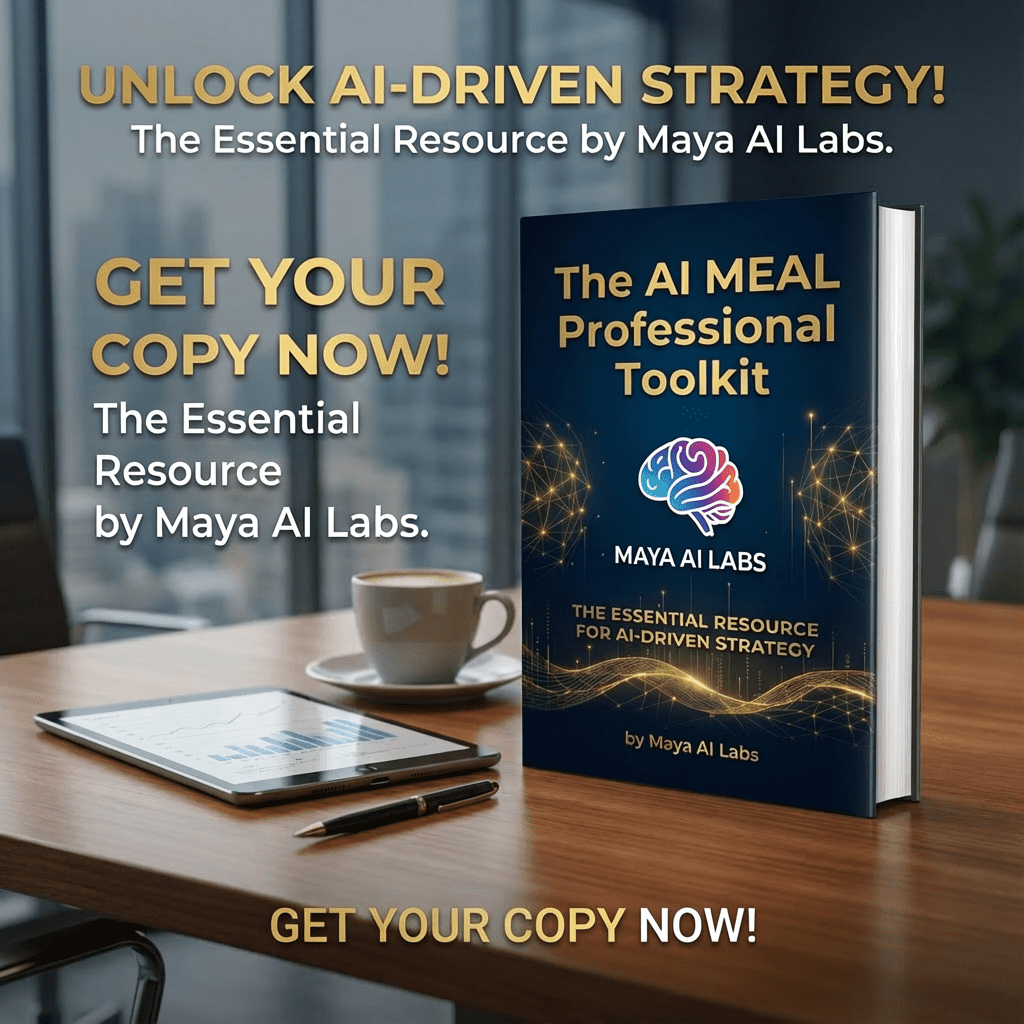
This masterclass provides a glimpse into the power of AI in Excel. If you’re ready to dive deeper and become a leader in AI-driven strategy, “The AI MEAL Professional Toolkit” is your essential next step. This comprehensive 120+ page e-book includes:
•5 In-Depth Masterclasses: Covering everything from AI-powered data analysis to strategic planning.
•75+ Copy-and-Paste AI Prompts: Practical, ready-to-use prompts to accelerate your work.
•A Complete System for Professional Excellence: Transform your approach to MEAL, reporting, and strategic integration.
Get your copy today and start your transformation!
Manager’s Recommendation: Build Custom Agents
Spreadsheets are just the beginning. If you want to turn your data into a custom AI agent for your business without writing code, CustomGPT.ai is the most powerful solution available today.
Build Your AI Agent →Manager's Recommendation: Build Custom AI Agents
If you want to turn your data into a custom AI agent for your business without writing code, CustomGPT.ai is the most powerful solution available today.
Build Your AI Agent →Ready to Master AI in 28 Days?
Take the next step in your professional journey with our structured, step-by-step roadmap designed specifically for non-technical founders and professionals.
Start the 28-Day Plan →Recommended hosting (what I use)
If you’re building a WordPress site, Hostinger is a solid budget-friendly option.
Disclosure: This is a referral link (supports the site at no extra cost to you).